
Burn ISO Image Using Rufus
After you obtain the ISO package, you can use Rufus to burn the ISO image to a USB drive.
Procedure
-
Select an ISO image.
-
Connect your USB drive and open Rufus.
-
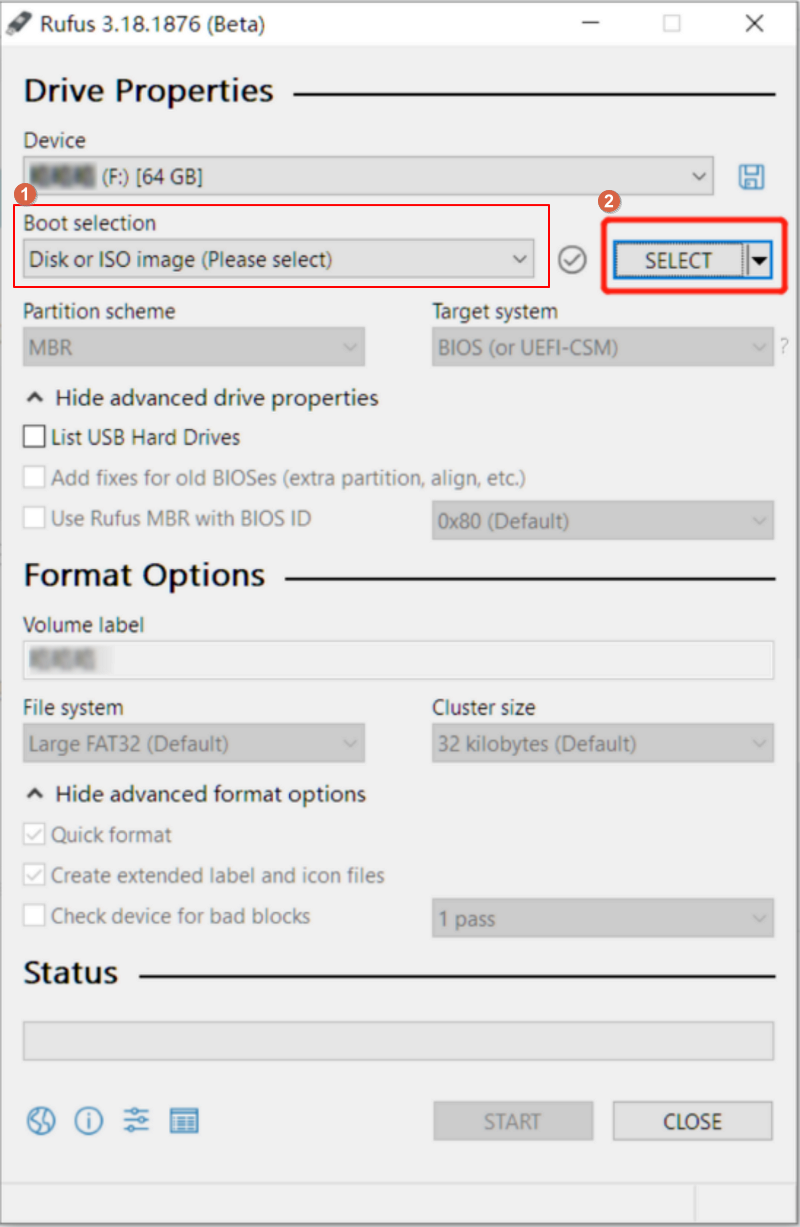
In the Boot Selection drop-down list, choose Disk or ISO image.
-
Click SELECT to open the ISO image file that you obtained.
-
-
Burn the image.
-
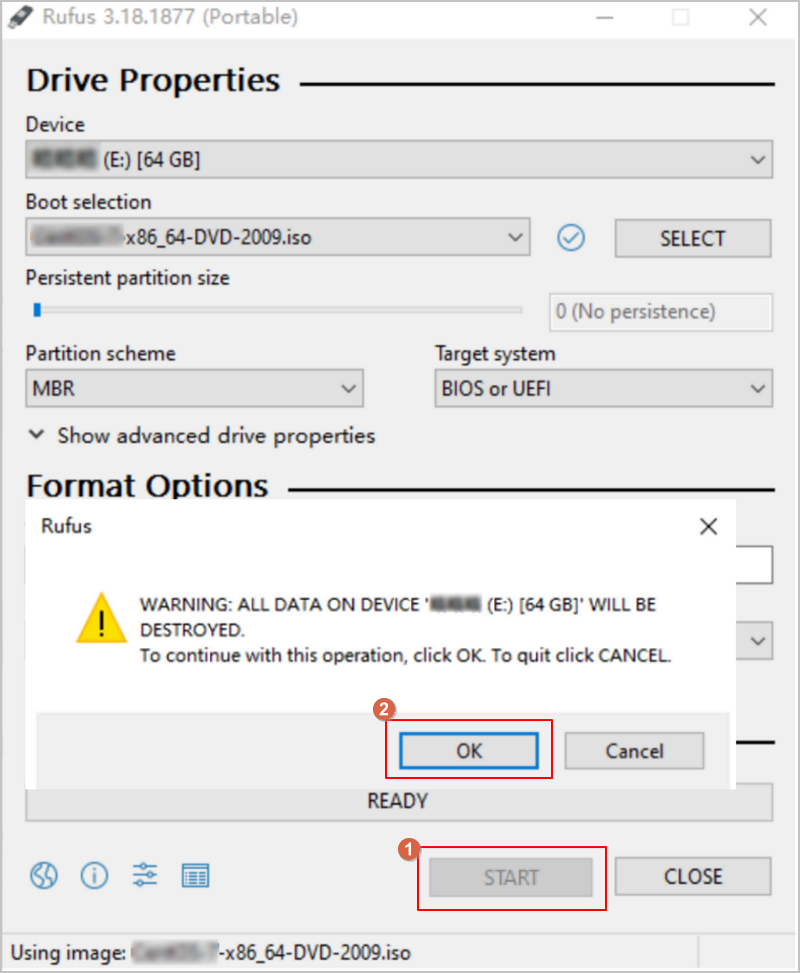
After selecting the ISO image, keep the other options at their default settings and click START.
-
Confirm the warning message.
Burning the image will format the data on the USB drive. If you have important data on your USB drive, make sure to back it up before formatting.
-
Click OK, and Rufus will burn the ISO image to the USB drive.
-
After the burning process completes, you can use the USB drive as a boot disk. ZSvirt supports booting in Legacy mode or UEFI mode.