
CentOS虚拟机无法进入系统,长时间处于黑屏,怎么解决?
现象
CentOS虚拟机无法进入系统,长时间处于黑屏。
原因
libselinux.so.1 被误删。
解决方案
-
在故障虚拟机详情页中,点击修改配置 > 光驱,进入光驱界面。点击镜像文件 > 加载ISO,为虚拟机加载CentOS ISO文件。
-
点击高级设置 > 引导选项 > 启动顺序,进入设置启动顺序界面,修改虚拟机启动顺序为光驱启动。
-
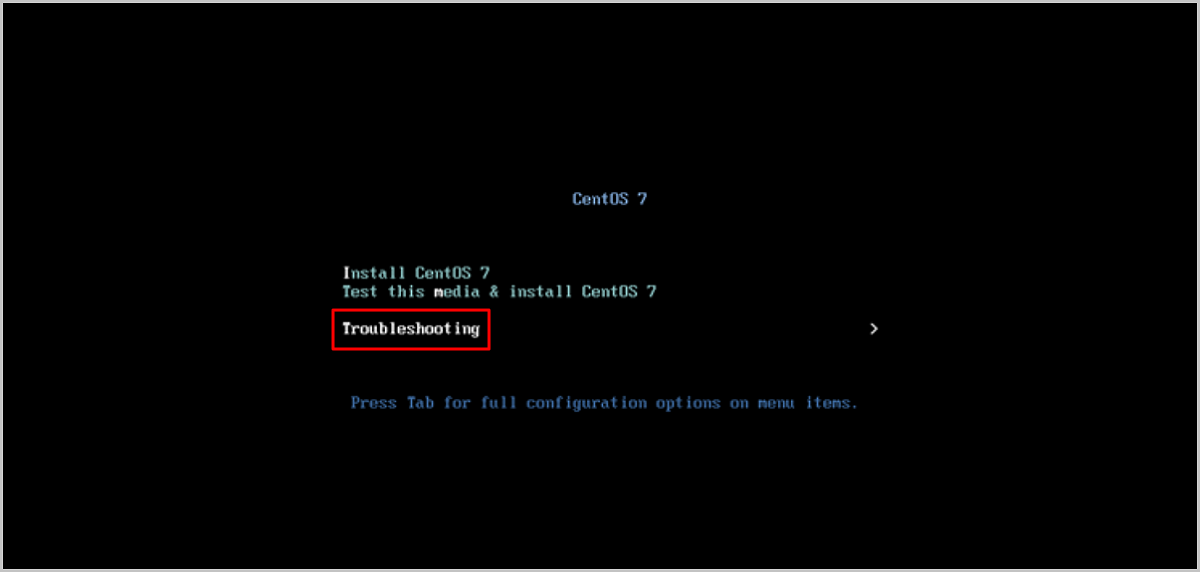
进入安装页面,选择Troubleshooting。
如Figure 1所示:
-
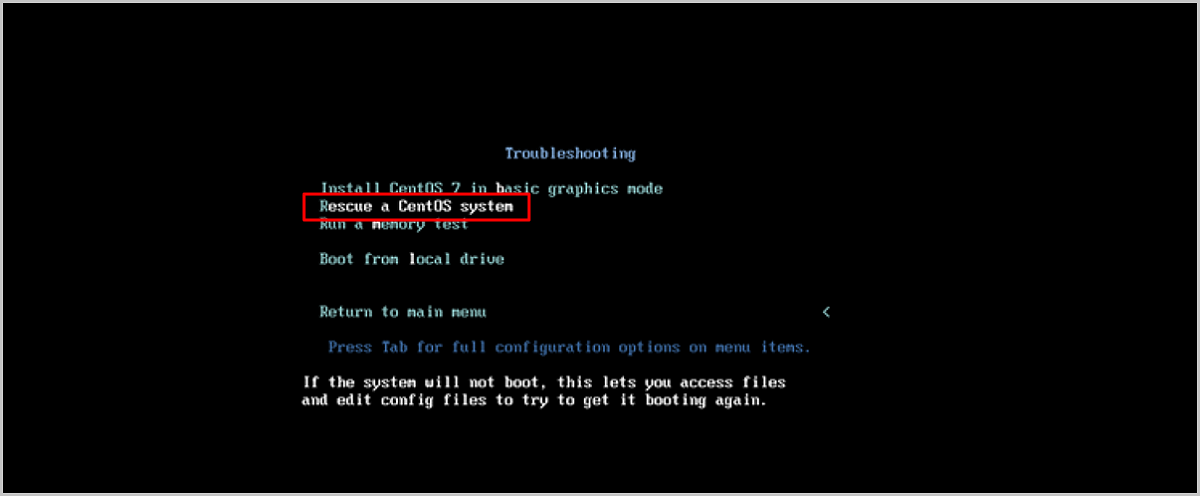
选择Rescue a CentOS system进入救援模式。
如Figure 2所示:
-
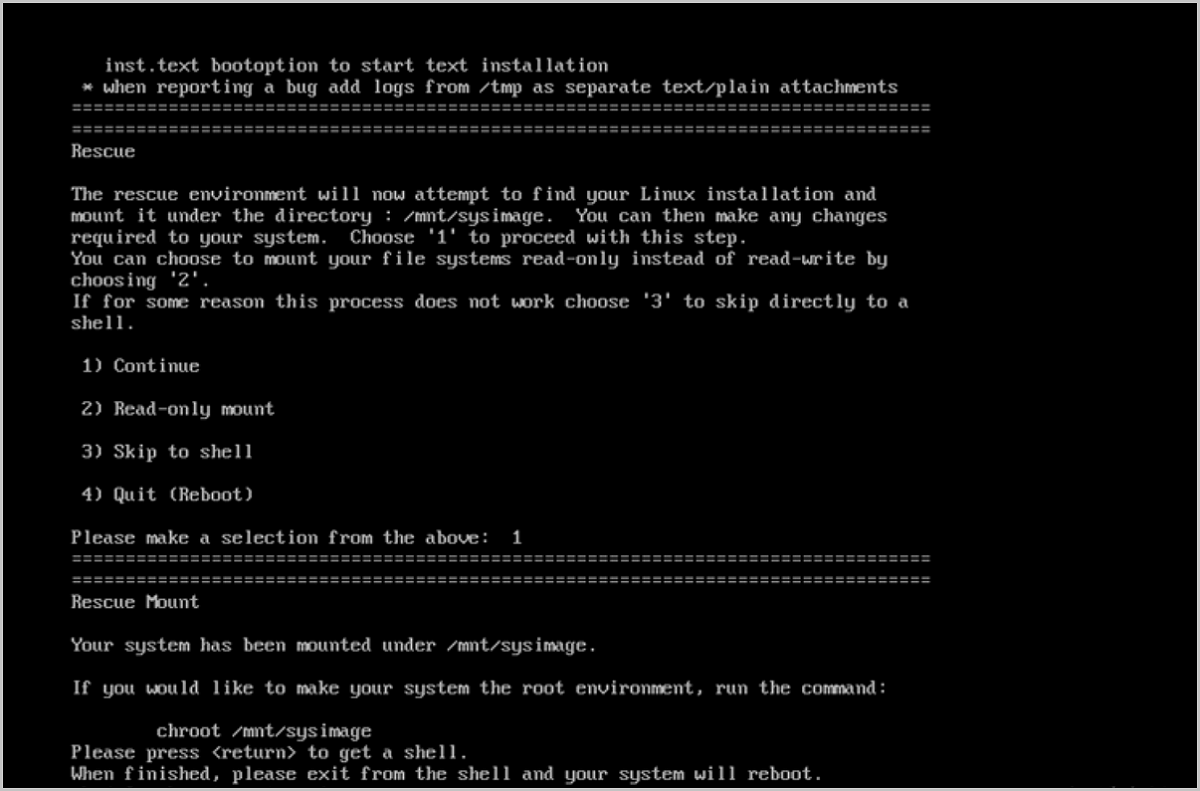
在救援模式界面输入1,以读写模式将系统根文件系统挂载到
/mnt/sysimage目录下。如果想要把/mnt/sysimage目录切换为根目录,执行chroot /mnt/sysimage命令。如Figure 3所示:
在救援模式中,进行任意操作均会触发以下报错:
ls : error while loading shared libraries: libselinux.so.1: cannot open shared object file: No such file or directory -
执行
chroot /mnt/sysimage命令以挂载系统。 -
执行
cp /lib64/libc.so.6 /mnt/sysimage/lib64将libc.so.6文件拷贝到系统目录下。 -
重启虚拟机可正常进入系统。